Blog / Video delivery
How to Send Large Videos Without Losing Quality
SendByCloud · · 9 min read

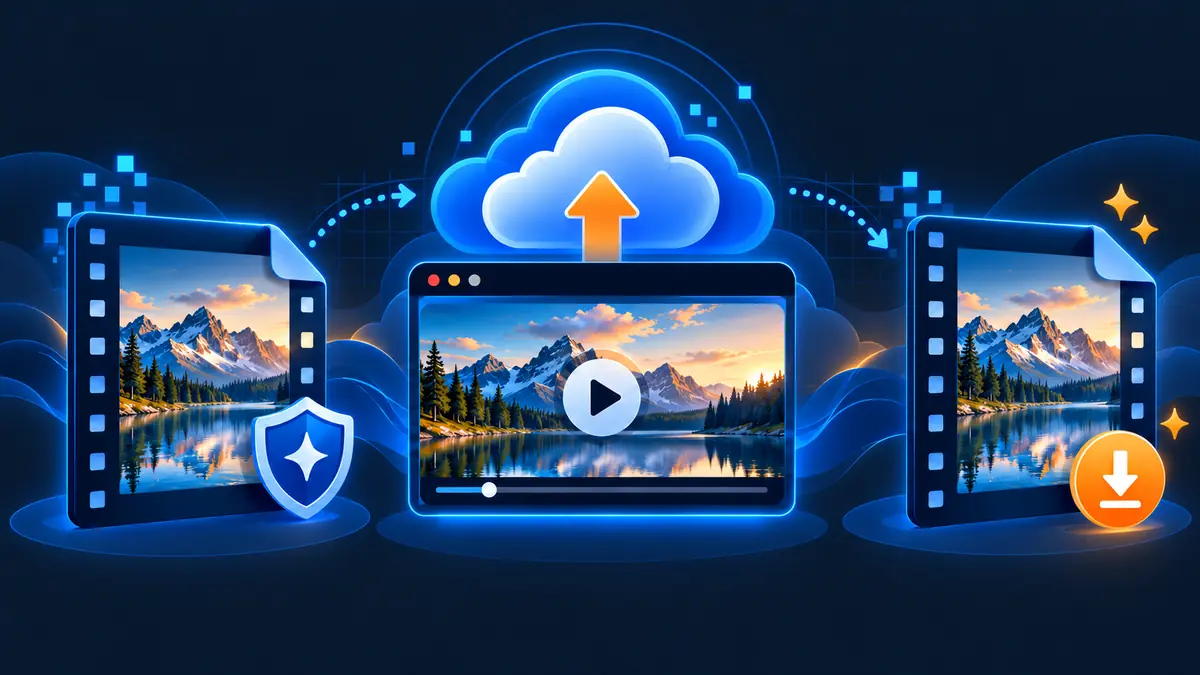
Deliver the original video file while giving your client or collaborator a convenient browser preview before downloading.
A polished video can be several gigabytes—or far more—once it is exported at full resolution. Sending it through a channel designed for casual messaging may produce a smaller, more convenient copy, but that copy may not preserve the detail, bitrate or format your project requires.
The simplest principle is this: upload the original file to a delivery platform, let the recipient preview it in the browser and provide the original file as the download. This keeps convenience and quality in the same workflow.
Where video quality can be lost
Many communication platforms optimise video for quick viewing. They may reduce resolution, lower bitrate, change the codec or strip part of the original metadata.
Email brings a different limitation: the original video often exceeds attachment limits. Splitting an export into several pieces also creates friction for the recipient.
Preview and download serve different jobs. A streaming-friendly browser preview helps someone review the video quickly. The original uploaded file remains the version they should download when full quality matters.
A better large-video workflow
Use one delivery page that clearly identifies the project and file. Your recipient should be able to open the link, confirm the content through a preview and download the original upload when ready.
- Client review and final delivery
- Video editors sending masters or proxies
- Production teams handing off footage
- Agencies delivering campaign assets
- Creators sharing long-form or high-resolution work
How to send a large video with SendByCloud
- Export the correct master — Confirm the required resolution, codec, audio layout and filename before uploading.
- Upload the original video — Guests can upload up to 7 GB with three-day retention, while registered free users receive 30 GB of usable account storage with seven-day retention.
- Allow the preview to prepare — SendByCloud creates a streaming-friendly preview for supported video.
- Choose access controls — Add password protection, an expiry date or one-time download when the project calls for controlled access.
- Share the delivery link — Send the link with the project name, version, requested action and deadline.
- Monitor the handoff — Use available delivery activity to follow the handoff and time your follow-up appropriately.
Explore the dedicated Send Large Video Files workflow for more details.
A practical workflow for video editors and agencies
For profession-specific guidance, visit File Sharing for Video Editors.
Review the available options on Secure File Sharing.
Frequently asked questions
Does the browser preview reduce the original video quality?
The preview may use a streaming-friendly version for browser playback. The recipient downloads the original file you uploaded, preserving that source for the final handoff.
Should I compress the video before uploading?
If the recipient needs the master, upload the approved original export. Create a smaller version only when it is genuinely part of your review or delivery plan.
Can I protect a video delivery with a password?
Yes. SendByCloud supports password protection along with expiry and one-time download controls.
What should I include in the delivery message?
Include the project name, version, file size, the action you need, the deadline and any expiry or password instructions.
Deliver the full picture. Start Sharing Free