Blog / Large file sharing
How to Send Files Too Large for Email
SendByCloud · · 8 min read

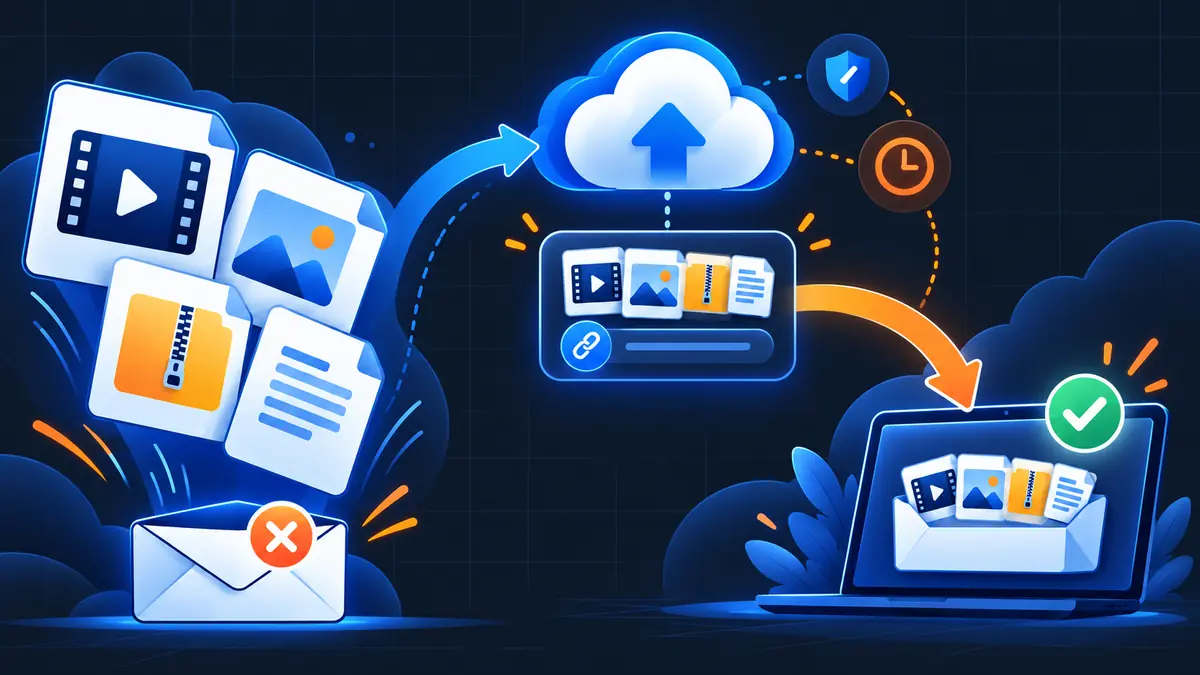
When an attachment exceeds an email provider's limit, a secure delivery link gives you a simpler and more professional way to send it.
Large files are part of everyday work: a video export, a high-resolution photo collection, a presentation, a design package or a project archive. Email is excellent for conversation, but attachments were built for smaller documents. Once a file crosses the provider's limit, the message may be rejected or the sender may be pushed towards an awkward workaround.
A file-delivery link separates the message from the file itself. You upload the original files once, create a shareable link and send that link through email, messaging or your project-management tool. The recipient opens a clean delivery page, previews supported content and downloads the files.
Why large email attachments become difficult
Email systems apply attachment limits to keep mailboxes and delivery infrastructure manageable. Encoding can also make an attachment larger while it travels through email. Even when your own provider accepts the message, the recipient's provider may use a different limit.
Breaking a project into several emails creates a second problem: files lose their context. Recipients have to collect different attachments, work out which version is current and confirm whether every part arrived.
The practical shift: Send the conversation by email and deliver the files through one organised link.
What makes a file-delivery link better?
A well-designed delivery link gives the recipient one destination for the complete package. It can also add controls that ordinary attachments do not provide:
- Browser previews for supported file types
- Password protection for sensitive deliveries
- An expiry date for time-limited access
- A one-time download option for a controlled handoff
- Delivery activity that helps the sender understand what happened
SendByCloud is built around this delivery workflow. Guests can upload up to 7 GB with three-day retention. Registered free users receive 30 GB of usable account storage, with files retained for seven days.
How to send large files with SendByCloud
- Choose the files — Open SendByCloud and select the documents, videos, images, audio or project archives you want to deliver.
- Review the selection — Check filenames and sizes before starting the upload.
- Set the delivery controls — Choose a password, expiry date or one-time download when the delivery requires tighter access.
- Upload and create the link — Let the upload complete and copy the generated delivery link.
- Share the link — Add the link to your email or message with a short explanation of what the package contains.
- Follow the delivery — Use the available activity information to see how the delivery is progressing.
Ready to deliver a large project? Visit Send Large Files for the complete SendByCloud workflow.
Choose the right access controls
Password protection
A password adds a layer between the link and the files. It is useful for client work, internal documents and unreleased material.
Link expiry
Expiry is helpful when a link is intended for a specific review window or handoff period.
One-time download
A one-time download can support a tightly controlled delivery.
Learn more about these options on the Secure File Sharing page.
Tips for a professional delivery
- Use descriptive filenames such as Client_Project_Final_2026-10-03.mov.
- Remove outdated drafts before uploading.
- Group supporting material into clearly named folders before creating an archive.
- Tell the recipient the total package size so they can choose a suitable connection.
- State the expiry date in the delivery message.
- Keep your message short and tell the recipient what action you need from them.
Frequently asked questions
Can the recipient access the files without creating an account?
The delivery link is designed for direct recipient access. Any password or download control selected by the sender still applies.
Can recipients preview files before downloading?
Supported file types can be previewed in the browser, helping recipients confirm the content before they download it.
How long do files remain available?
Guest uploads are retained for three days. Registered free-user files are retained for seven days under the current free offering.
Should I compress the files first?
Compression can keep a multi-file project together, but it is optional. For media, preserving the original file may be more important than reducing its size.
Send the file, not the friction. Start Sharing Free