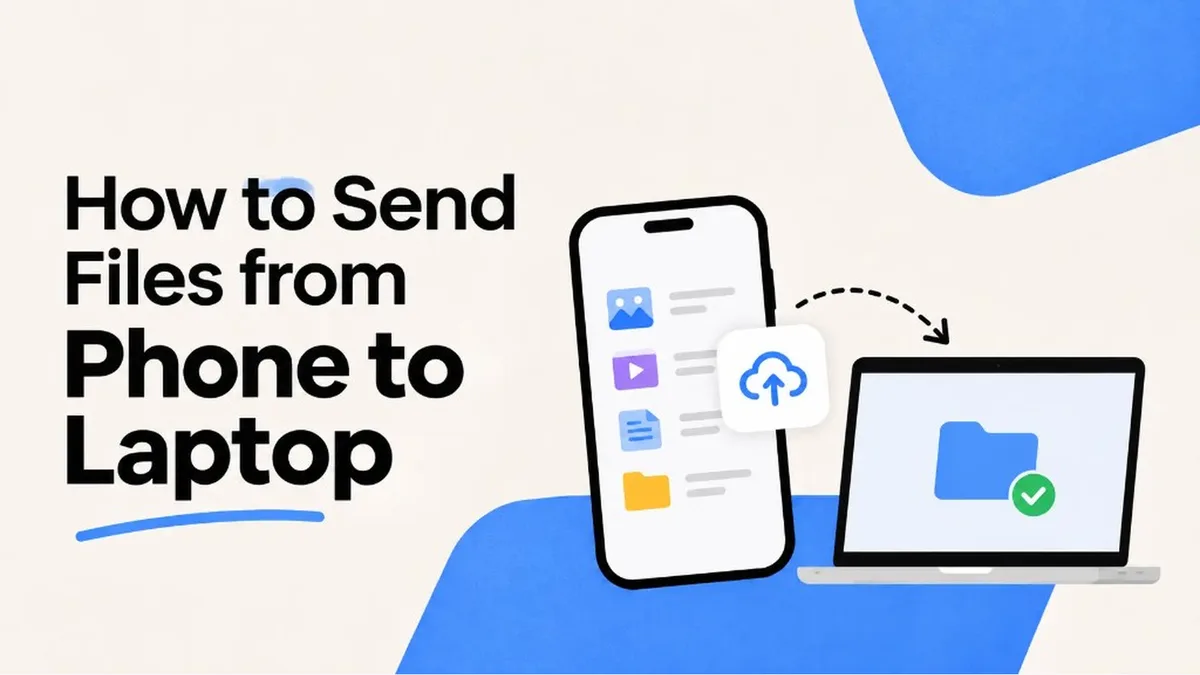
You have some files on your phone you need on your laptop. Maybe it’s photos from a recent trip, a video you want to edit, or documents you’ve been meaning to save somewhere else.
The usual options are familiar: connect a cable, use AirDrop on Apple devices, or send the files to yourself on WhatsApp. But what if you want those same files on more than one computer, don’t have your cable nearby, or simply don’t want to keep sending files back and forth?
This is where a transfer link helps. With SendByCloud you can upload selected files from your phone and download them on another device while the link is available. It works whether you use iPhone or Android, and a Windows laptop or Mac. The right method still depends on what you’re transferring and where it needs to go.
How to transfer files from phone to laptop by various ways
There are several ways to move files between devices. Some work best when your phone and laptop are close by; others depend on the platforms you use.
Here’s how the usual ways measure up.
| Method | When it's useful | What to keep in mind |
|---|---|---|
| USB cable | Transferring large collections of files directly to a computer. | Compatible data cable needed. There may be settings to change or import software to use. |
| AirDrop | Photos, videos and documents shared with other Apple devices nearby. | Made for Apple, so it is not a general solution for Windows or Android. |
| Quick Share | Wireless sharing between compatible Windows and Android devices. | Requires supported devices and some setup. |
| Send a quick picture, video or document via a familiar chat. | Important files can get lost in conversations. Regular media sharing can compress photos or videos; sending supported files as documents can help keep original quality. |
There’s a place for these methods. If you’re switching between devices, don’t have the right cable, or want an easier way to retrieve files later, a browser-based transfer is worth considering.
An easier alternative: SendByCloud
You can upload chosen files in your phone’s browser and generate a transfer link, instead of connecting devices or sending chat attachments. Open that link on another supported device — a Windows laptop, Mac or another phone.
This approach is useful when you need to transfer files without USB, or share with someone in another location, because the devices do not have to be physically connected or nearby.
How to send files with SendByCloud
You have a couple of documents on your phone and want them on your computer. You can create one transfer link instead of sending each attachment individually.
Open SendByCloud on your phone
Launch SendByCloud in your phone’s browser and start a new transfer for the files you want on your laptop.
Choose the photos, videos or documents
Select the files you need to move. Keep related items together so everything arrives in one package.
Upload and create the shareable link
Upload the files and wait until the delivery is ready. Keep the page open until the upload finishes successfully.
Copy the transfer link
Email the link to yourself, save it in a note, or send it through another channel you can open on your laptop.
Open the link on your laptop and download
Open the delivery page on your Windows laptop or Mac, then download the files into the folder you want.
You will need an internet connection, and you should keep the upload page open until the transfer completes. If you are sharing sensitive documents, consider password protection and other access settings — anyone with an unrestricted link may be able to open it.
For large video deliveries, see our guide on sending large videos without losing quality.
One upload, multiple devices
Say you took photographs on a family trip. You want copies on your personal laptop, your office computer and maybe an external drive. Upload the photos once, save the link, then open it wherever you need another copy — at home, at work, or to share with family.
Those downloaded copies stay on the devices that saved them, even after the original link expires.
Selecting the right method for your files
If you’re moving a whole phone gallery or hundreds of gigabytes of data, a cable or external storage device may be more practical. SendByCloud is another option for moving selected files between devices, sharing remotely, or retrieving them with a link — without a direct device connection.
For permanent storage or automatic sync, a dedicated backup or cloud-storage service is better suited. If your file is too large for email, we have also written about how to send files too large for email.
Whatever method you choose, confirm the files transferred correctly before you delete the originals from your phone.
Related guides
Your files, wherever you need them.
Upload once from your phone and open the same delivery link on your laptop.
Start Sharing Free